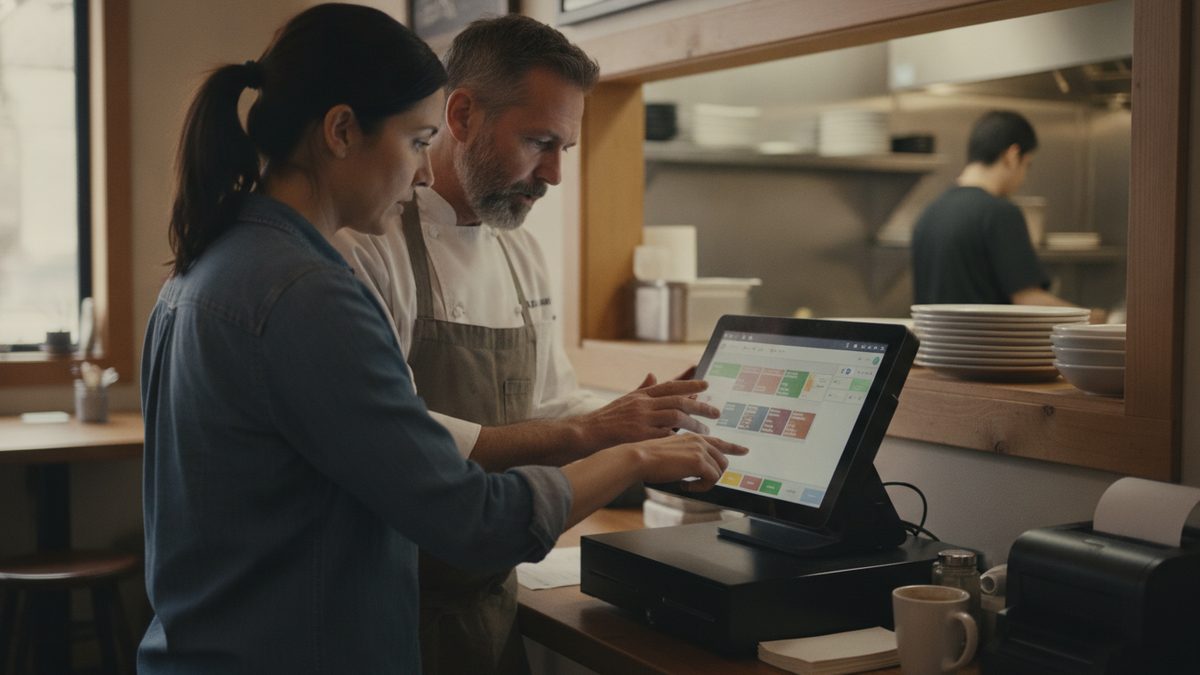
To set up courses and fire timing in your POS, assign every menu item a default course (for example, appetizer, entrée, dessert), turn on "hold" so later courses wait, and give servers a one-tap "fire" button to release the next course when the table is ready. Done right, food arrives at a steady pace, the kitchen cooks in the right order, and guests never watch an empty table while entrées sit under the lamp.
Why course timing matters
Without coursing, the kitchen sees every item on the ticket at once. Appetizers and entrées get cooked together, entrées die in the window, and the guest feels rushed. Coursing is the digital version of a server telling the chef "hold the mains." It is especially important for tasting menus, large parties, and busy weekend nights. It also helps speed: see Improving Speed of Service Metrics for the numbers worth watching.
Decide your course structure
Keep it simple. Most restaurants need only three or four courses.
| Course | Typical items | Default setting |
|---|---|---|
| Course 1 | Drinks, appetizers, salads | Fire immediately |
| Course 2 | Entrées | Hold until fired |
| Course 3 | Desserts, coffee | Hold until fired |
| Shared / sides | Sides and sharing plates | Fire with entrée |
Fast-casual and counter service can skip this entirely. Full-service restaurants, steakhouses, and any place with sharing plates benefit most. If you sell small plates, read How to Price Small Plates and Shareable Dishes to align the menu with the flow.
Set up the default course on each item
- Open your menu setup and create course labels.
- Assign each item its default course so servers do not have to choose.
- Mark drinks as "fire now" so they never get held.
- Let servers override the course for special cases, such as a guest who wants a soup with the entrée.
This one-time setup is the same effort as building menu modifiers, and it pays back every shift.
Configure hold and fire
Hold
When an order is sent, the POS prints or displays only the fired course. Later courses stay on hold and appear greyed out or on a separate "on hold" list.
Fire
When the table finishes, the server taps "fire course 2" and the kitchen sees the tickets. Add a timed fire option if your system supports it, such as firing entrées automatically 12 minutes after appetizers. Use it carefully; a table that lingers will be rushed.
Rush and 86 handling
Give managers an override to fire all courses immediately. A guest who says they are in a hurry should not need three taps from the server.
Route courses to the right stations
Each course should print or display at the correct station with a clear header such as "COURSE 2 - FIRE." Pair this with the ticket routing in How to Set Up Printers and Kitchen Ticket Routing in Your POS. If you run screens, see Kitchen Display Systems (KDS) Explained for how held items should display.
Takeaway: Set default courses once, hold everything after course one, and give servers a one-tap fire button. The kitchen cooks in order, and tables get a steady pace instead of a pile of plates.
Train the team and test
Run a mock table before opening. Ring a four-top with appetizers, entrées, and dessert. Fire each course and watch the kitchen. Hold a short pre-shift session using How to Run an Effective Pre-Shift Meeting so every server knows when to fire and what to say to guests. For broader rollout advice, see How to Train Staff on a New POS.
Measure the result
Track ticket times by course and table turn time. If entrées take 25 minutes after firing, the problem is in the kitchen, not the POS. If tables wait 15 minutes between courses, servers are firing late. Cobblestone POS includes course holds, one-tap firing, and ticket-time reporting, and it is free for independent restaurants with no monthly fee, compared with Toast at roughly $470+ per month. That makes it easy to get course timing right without paying for features you do not need.