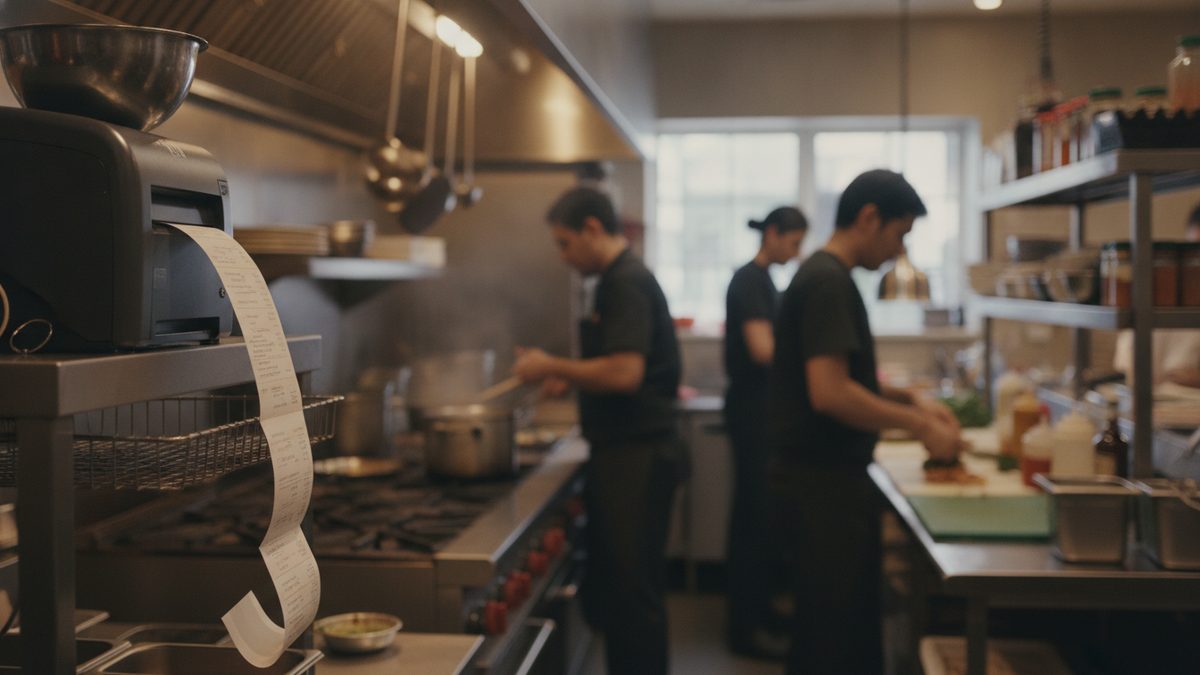
To set up kitchen ticket routing, connect each printer or screen to your network, give it a station name, then assign every menu item or category to the station that makes it, so a burger prints on the grill and a salad prints on cold prep. Test with a fake order before service. Done well, routing removes the shouting, the walking and the lost tickets that slow your line down.
Why routing matters
Without routing, every ticket lands in one spot and someone has to read it, decide who cooks what, and shout it out. That adds seconds to every order and mistakes to the rush. With routing, each station sees only its own items. It pairs naturally with an efficient layout, covered in setting up an efficient line during service, and it is the printed version of what a kitchen display system does on screen.
Step 1: Map your stations
Before touching settings, list the places food is made. A typical restaurant might have:
| Station | Example items | Output |
|---|---|---|
| Grill | Burgers, steaks | Kitchen printer or screen |
| Fry | Fries, wings | Kitchen printer or screen |
| Cold prep | Salads, apps | Kitchen printer |
| Expo | All items, for assembly | Expo printer or screen |
| Bar | Cocktails, beer, wine | Bar printer |
| Front counter | Receipts, takeout slips | Receipt printer |
Walk your actual line and note where tickets should be read. One printer per station is usually enough; a tiny kitchen may need only two.
Step 2: Connect the hardware
Most thermal printers connect by Ethernet, Wi-Fi or USB. Ethernet is the most reliable in a hot, greasy kitchen. Give each printer a fixed IP address on your router so it never "disappears" after a reboot. Label each device with its station name and IP on masking tape underneath. Mount printers away from fryers and steam, and keep paper rolls stocked at every station.
Step 3: Name printers by station, not by model
In your POS, add each printer and name it "Grill," "Bar," "Expo" instead of a model number. Clear names stop confusion when a new manager sets things up later.
Step 4: Assign items to stations
Route by category first (all burgers to the grill), then handle exceptions item by item. Check these special cases:
- Items that touch two stations, like a burger with fries. Send the ticket to both stations, or route the main item to its station and the side separately.
- Modifiers such as "no onion" or "allergy." They must print under the item they change. Review menu modifiers in your POS so the instructions show in bold.
- Drinks to the bar, but desserts and coffee to wherever they are made.
- Takeout and delivery orders, which should be labeled clearly so they are not mixed up with dine-in.
Step 5: Set course timing and ticket format
Decide whether items fire immediately or in courses. Tell the POS to hold entrees until appetizers are served if you run a sit-down room. Format tickets so the table number, server name, order type, time and seat appear in the same place every time. Large type for the item name and smaller type for modifiers keeps the line fast.
Step 6: Plan the backup
Printers jam, paper runs out and networks drop. Keep a spare printer boxed, a paper stash at each station and a written fallback: if tickets stop, servers write orders and run them by hand. Read how to keep taking orders when your internet goes down so the plan is ready before you need it.
Step 7: Test before service
Place a test order with items from every station plus modifiers, a takeout order and a split course. Confirm each ticket prints once, at the right place, with the right text. Then run a mini drill with your team during a slow hour. Include training in your rollout, as in how to train staff on a new POS.
Troubleshooting common problems
- Ticket prints twice: an item is assigned to two stations by mistake.
- Nothing prints: check power, paper, then the printer's IP address.
- Ticket prints at the wrong station: a category was left unassigned or defaults to the receipt printer.
- Garbled text: the printer model or character setting is wrong in the POS.
Routing is a one-time setup that pays back on every shift. Map your stations, name printers clearly, test with real orders and keep a paper-and-pen backup within reach.
Where Cobblestone POS fits
Cobblestone POS is free, built for independent restaurants, and includes kitchen routing alongside online ordering, scheduling, loyalty and reporting, with no monthly fee. That means you can set up a multi-station kitchen without paying the roughly $470 a month some competitors charge. If you are still comparing options, see how to choose a restaurant POS system.