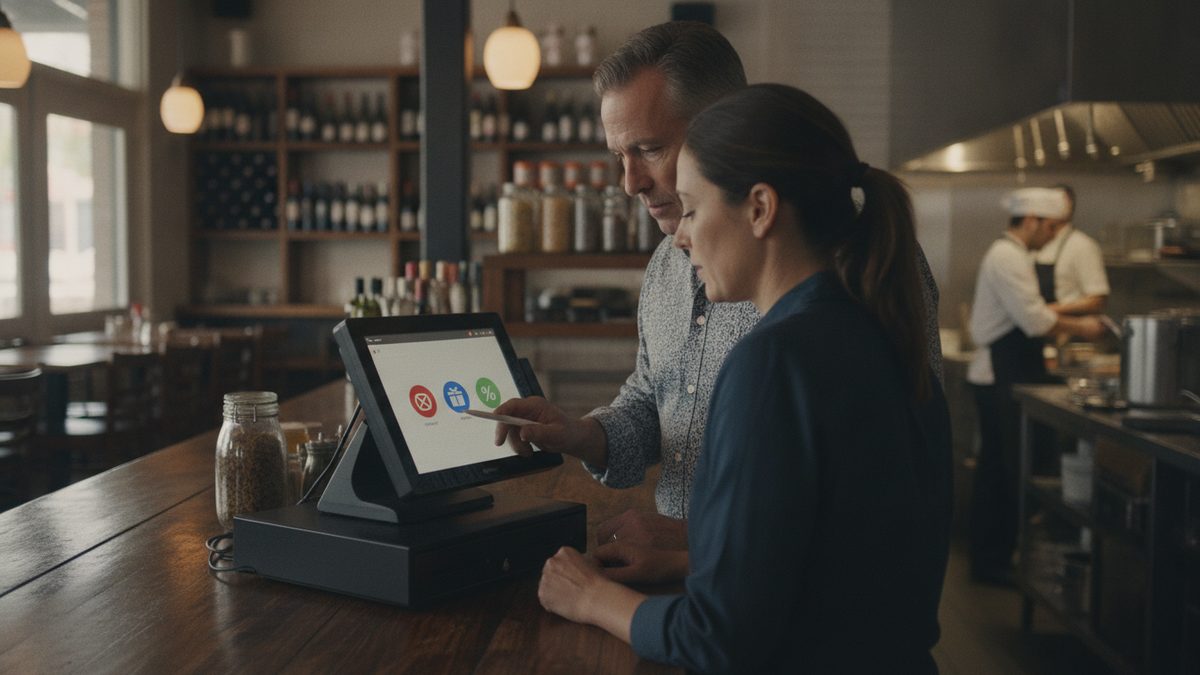
To track voids, comps and discounts in your POS, require a reason code and manager approval for each one, run a daily exception report, and review totals as a percentage of sales by employee, shift and reason. Healthy restaurants usually keep combined voids, comps and discounts to a low single-digit percentage of gross sales, and anything that stands out by person or time deserves a conversation.
These three adjustments are normal. Servers ring wrong items, kitchens burn steaks, and good hosts fix guest problems. They are also the easiest places for money to leak, whether through honest error, generosity without limits or theft. Your POS is where you catch it.
Know the difference
| Adjustment | What it is | Example | Who should approve |
|---|---|---|---|
| Void | Removes an item before or soon after it is sent, as if it never happened | Wrong item entered | Manager if after sending to kitchen |
| Comp | Free item you still made; food cost is spent | Overcooked entree | Manager always |
| Discount | Reduction in price by amount or percent | Happy hour, loyalty reward, staff meal | Preset by role |
| Refund | Money returned after payment closes | Guest unhappy after paying | Manager or owner |
Voids hide the item and its cost, while comps keep the cost visible. That is why void abuse is the classic trick: ring a sale, collect cash, void the ticket.
Step 1: Build reason codes
Free text is useless in reports. Create a short list:
- Wrong item entered
- Guest changed mind
- Kitchen error or remake
- Food quality issue
- Service delay
- Staff meal
- Manager hospitality
- Promotion or loyalty
Force a reason on every adjustment.
Step 2: Set permissions
Limit who can void after a check is paid or sent. Typical rules:
- Servers can void items before sending to the kitchen.
- Anything after sending needs a manager code.
- Comps and discounts above a set dollar amount need a manager.
- No one approves their own adjustments.
- Only the owner can reopen a closed check.
Cobblestone POS lets you set role-based permissions and reason codes at no monthly cost, while many competitors charge extra tiers for advanced controls.
Step 3: Run a daily exception report
Pull these every day, ideally from your phone:
- Total voids, comps and discounts by dollar and percent of sales
- Count and dollars by employee
- Voids after payment
- Refunds and reopened checks
- No-sale drawer opens
Compare each employee to the shift average. One person at three times the average is a signal, not proof. Ask questions before accusing anyone.
Step 4: Compare to benchmarks
Set your own targets and review weekly:
| Measure | Healthy range | Investigate if |
|---|---|---|
| Voids | Under 1% of sales | Above 2% |
| Comps | 1% to 2% | Above 3% |
| Discounts | Depends on promotions | Unplanned growth |
| One employee vs. team | Within 1.5x average | Above 2x |
Your numbers will vary with concept and service style, so track a baseline for a month first.
Step 5: Act on patterns
Not every spike means theft. Look at the cause:
- High kitchen-error comps: retrain line cooks or check equipment. See how to improve FOH and BOH communication.
- High wrong-item voids: the menu or POS buttons may be confusing; retrain with how to train staff on a new POS.
- One server, late-night voids: review video and cash counts, then follow how to prevent POS fraud and errors.
- Many manager comps: set a monthly hospitality budget.
Document each conversation and keep the standard consistent for everyone.
Add it to your routine
Spend ten minutes at close reviewing the exception report, and one hour a week on trends. Pair it with cash handling controls and food cost variance reports so you can reconcile what was sold, comped and used.
Takeaway: Require reasons and manager approval, review exceptions daily, and watch percentages by person. Controls plus a consistent conversation protect your margin without making your team feel watched.
Download the free voids, comps and discounts tracker (Excel)