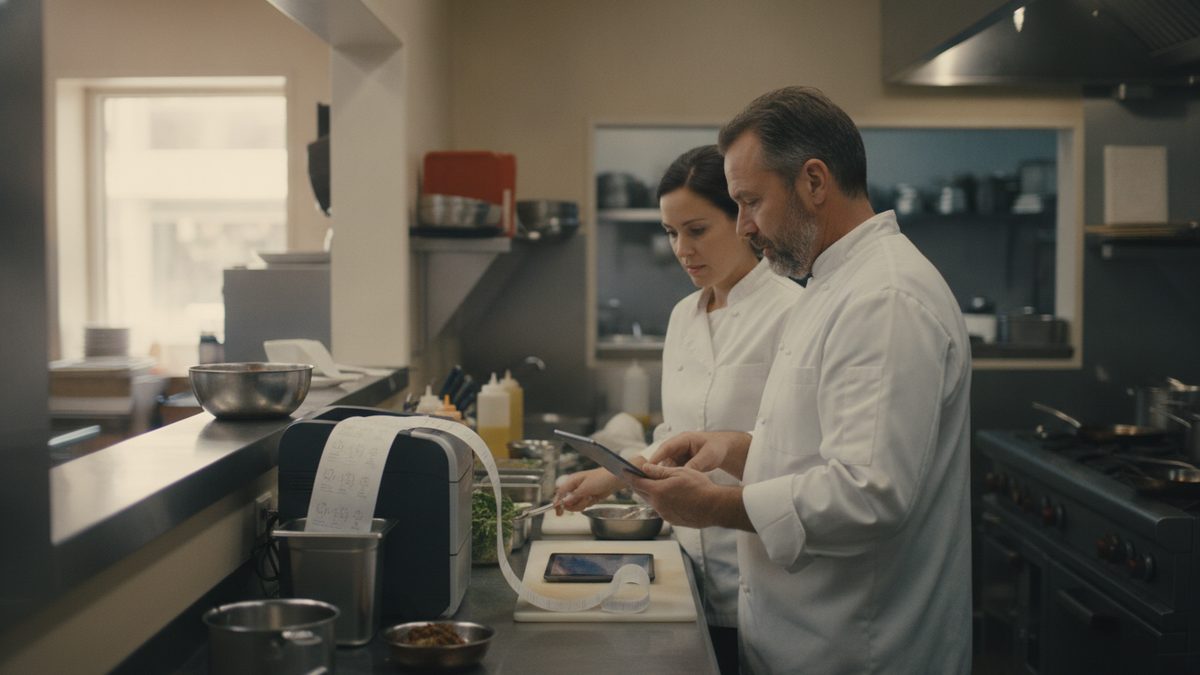
To set up order throttling, decide how many online orders your kitchen can finish per 15 minutes without hurting dine-in service, then enter that number as a limit in your online ordering settings, along with an honest prep time for each order type. When the cap is hit, new customers see a later pickup slot instead of an order your kitchen cannot make. Throttling protects ticket times, food quality and your reviews.
Why throttling matters
Online orders do not arrive politely. A lunch rush, a rainy Friday or a promotion can send fifteen tickets in five minutes, on top of a full dining room. Without limits, ticket times balloon, food sits and cools, and the customer who ordered at 6:05 blames you, not the software. Poor pickup experiences end up in Google reviews and hurt direct online ordering just when you are trying to grow it.
Step 1: Measure your real capacity
Capacity is not a guess. Start with the station that bottlenecks first, usually the fry station, grill or pizza oven.
- Time how long a typical order takes at the bottleneck station, in minutes.
- Count how many cooks work that station during peak.
- Estimate what share of that station's time you want to reserve for dine-in, often 50% to 70% during a rush.
- Divide: orders per 15 minutes = (15 ÷ minutes per order) × cooks × share available for online.
For example, a grill cook who needs 6 minutes per order, with one cook and 40% of time available for online, can handle (15 ÷ 6) × 1 × 0.40 = 1 order per 15 minutes from that station. If most orders also hit the grill, that is your cap. The attached calculator does this math for you.
Step 2: Set prep times by order type
| Order type | Typical starting prep time | Adjust when |
|---|---|---|
| Small pickup (1-2 items) | 15 minutes | Raise on busy nights |
| Large pickup (3+ items) | 25 minutes | Raise for fried or grilled mains |
| Delivery (own drivers) | 35-45 minutes | Include drive time |
| Catering or party trays | 24+ hours notice | Set a minimum lead time |
Use quoted times you hit at least 90% of the time. Early is a gift, late is a complaint. Review average ticket times from your POS sales data every two weeks and adjust.
Step 3: Choose your throttle method
There are three common approaches, and many owners combine them:
- Orders per window. Cap the number of orders per 15-minute slot, such as 6.
- Item or dollar cap. Limit total items or sales per slot, which handles the one huge order better than counting orders.
- Dynamic prep time. Automatically raise the quoted time as the open ticket count grows, so customers self-select a later time.
For most independents, a per-window cap plus a dynamic prep time is the best balance. Dollar caps work well for restaurants with big catering-style orders.
Step 4: Route tickets so the cap makes sense
A limit only works if tickets reach the right station at the right time. Set kitchen ticket routing so online orders print or appear on a kitchen display with the promised pickup time, and have a staff member clearly responsible for packing and handoff. The takeout and delivery operations guide covers the pickup shelf and handoff process.
Quote the time you can keep, not the time you hope for. A customer who waits 20 minutes as promised is happier than one who was promised 10 and waited 15.
Step 5: Add a pause button and a plan
Even with a cap, things go wrong: a cook calls out, the fryer dies, a dining room floods with a walk-in party. Make sure a manager can pause online ordering in one tap and resume it later. Decide in advance who can press it and what the trigger is, for example, more than eight open tickets or any ticket past 25 minutes. Pair this with a plan for reducing wait times in a rush.
Common mistakes
- Leaving a default prep time of 10 minutes that nobody ever tested.
- Setting one cap for every hour instead of lower caps during peak.
- Ignoring dine-in volume, so online orders starve the dining room.
- Forgetting to restore normal limits after a promotion ends.
Where your POS comes in
The best throttling tools sit inside the same system as your menu and tickets. Cobblestone POS is a free, all-in-one POS with commission-free online ordering, so you can set prep times and manage online tickets alongside dine-in orders without per-order marketplace fees or a monthly subscription. If you are still choosing a platform, see how to set up online ordering for your restaurant and online ordering systems compared.
Quick checklist
- Find your bottleneck station and time it.
- Calculate orders per 15 minutes you can safely handle.
- Set prep times by order type and review them biweekly.
- Add a per-window cap, and a dynamic prep time if available.
- Make sure managers can pause ordering instantly.
- Review ticket times after every change.
Free Online Order Capacity Calculator (Excel).