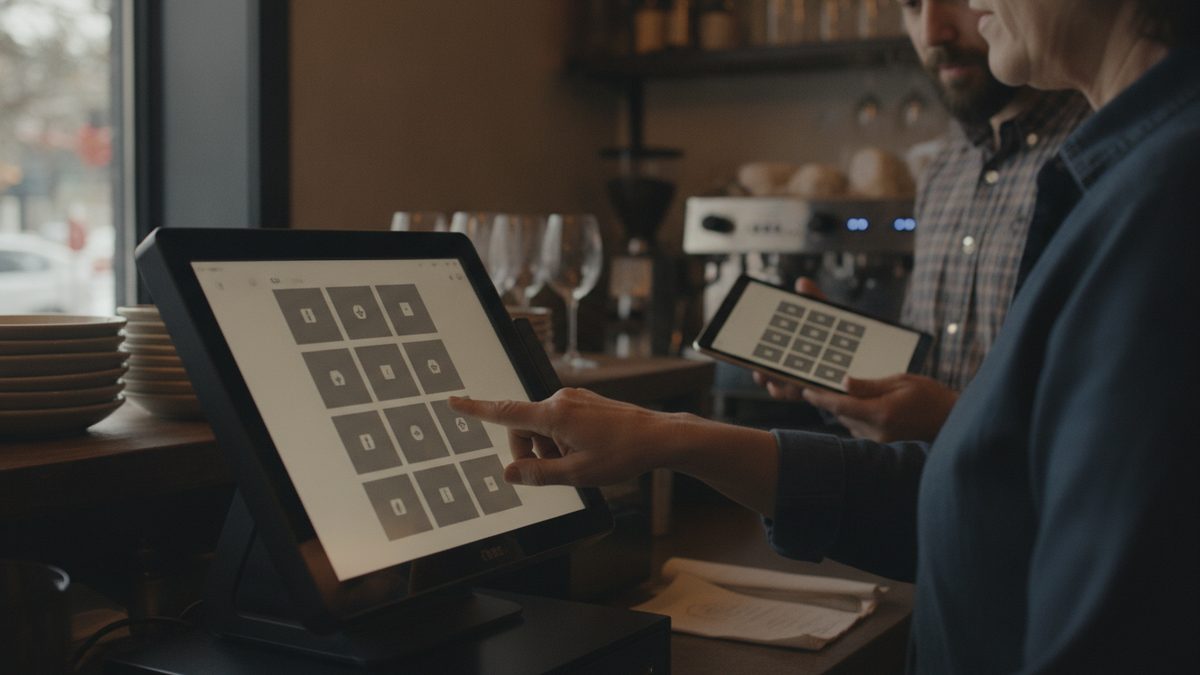
To set up table management in your POS, recreate your dining room as a digital floor plan, number each table to match the physical numbers, group tables into server sections, and turn on status tracking so you can see which tables are open, seated, ordered, or ready to bill. A clean floor plan speeds up ordering, reduces mix-ups, and gives you the data to seat more guests per night.
The floor plan is the first screen servers see all shift. If it does not match the room, every order slows down.
Why the digital floor plan matters
Without a layout, servers guess at table numbers and food runners hunt for the right guest. With one, a check opens on the correct table, the ticket prints with a clear number, and a manager can glance at the screen and see the whole dining room. It also feeds your reports, so you can see which tables earn the most per seat.
Step 1: Map the room as it really is
Walk the dining room with a tablet and sketch it before touching the software. Record every table, bar seat, patio table, booth, and high-top, with its seat count. Then build it the same way, using the same numbering as the small numbers on your tables.
| Area | Typical setup | Tip |
|---|---|---|
| Main dining | Numbered 1-30 | Keep numbers sequential by zone |
| Bar | Seats as B1-B12 | Treat each seat or bar section separately |
| Patio | Numbered 40s | Easy to disable in winter |
| Private room | Single large "table" | Create a combined table for parties |
If you are reworking the room itself, see Designing an Efficient Restaurant Layout.
Step 2: Create server sections
Group tables into sections with sensible walking paths. A server can usually handle four to five tables, or about 16 to 20 seats on a normal night. Build several section templates: a slow-night version with two or three sections, a normal-night version, and a full-house version. Switching templates at the start of a shift takes seconds.
Match sections to your schedule
Align the number of sections with how many servers you scheduled. If you cut a server early on a slow night, you should be able to merge sections in the POS without redrawing anything.
Step 3: Turn on table status
Status colors turn the floor plan into a live dashboard. Typical statuses include open, seated, ordered, food out, check dropped, and paid. Hosts see which tables will open soon, servers see which tables need attention, and managers spot the table that has waited too long without a drink.
Takeaway: If your floor plan shows status in real time, your host can seat intelligently instead of guessing, and table turn time drops without rushing guests.
This ties directly to How to Improve Table Turnover Time, which explains where the minutes actually go during a meal.
Step 4: Connect reservations and waitlist
Link reservations to the layout so a booked party reserves a specific table or a table type. Set realistic dining durations: about 60 minutes for two guests at lunch, 90 minutes at dinner, and 120 for larger parties. If you run a waitlist, text guests when their table is ready. How to Set Up a Reservation and Waitlist System covers this in more depth.
Step 5: Add tableside ordering and splits
Make sure servers can transfer a check between tables, combine tables for a large party, and split checks by seat. These actions cause the most frustration during a rush if they are not set up properly. If servers use handhelds, Handheld POS and Tableside Ordering explains how to roll that out, and How to Set Up Pay at the Table covers payment.
Cobblestone POS, a free all-in-one POS for independent restaurants, includes floor plans, table status, and ordering without a monthly fee, so a small dining room can run the full setup at no cost. Visit Cobblestone POS to see it.
Test the setup before opening
- Open a check on every table and confirm the number prints correctly.
- Combine two tables and split the check by seat.
- Transfer a check between servers.
- Run a mock rush with staff to spot confusing layouts.
Review the data monthly
After a few weeks, check sales per table and per seat. If the two-tops outperform the four-tops, you may be wasting seats; if the patio is slow on weeknights, close it and save labor. How to Reduce Wait Times During a Rush shows what to adjust when the room backs up.
Keep it updated
Whenever you rearrange tables for a holiday event or private party, update the layout the same day. A floor plan that is only mostly right is worse than none at all, because staff stop trusting it.